Open CMD
Execute Command
in MS DOS:
taskkill /F /FI "USERNAME eq XYZ"
Comment: "XYZ" will
be the Username of which all tasks needs to be killed!
Enjoy with tricks
Tuesday, 10 June 2014
How to create application pool in IIS through batch file.
Run notepad and type following commands
cd %windir%\system32\inetsrv
appcmd add apppool /name:Pool_Name1
/managedRuntimeVersion:v4.0 /managedPipelineMode:Classic
appcmd set apppool /apppool.name:Pool_Name1
/processModel.identityType:NetworkService
appcmd set apppool /apppool.name:Pool_Name1
/enable32BitAppOnWin64:True
Save notepad file as batch file like (Pool.bat) in C: drive at any location. Run this batch file on server where you want to create application pool

Note:
Define the attributes as per the requirements.
For example:
- If you are using framework 4 then put following value (managedRuntimeVersion:v4.0) and if you want to use framework 2 then put following value (managedRuntimeVersion:v2.0) in batch file.
- If you want to use identityType (NetworkService) then put (processModel.identityType:NetworkService) and if you want to use any other user you can change the value like this (processModel.identityType:administrator)
Now open IIS and see you will find your application pool there. enjoy with little bit practice.

How to create oracle listener
Press window+R and type “NETCA” and press enter
Oracle Net Configuration Assistant Welcome window will be
opened

Select “Listener Configuration” and click next
Select “Add” and click next, and at this window you can
manage already exist Listener.

Type here Listener name as you want. If not then remain as
default like “LISTENER” and click next

At this window select Available protocol like “TCP” and
click next

Oracle Listener use 1521 standard port to communicate with
networks and applications. If you want to use standard port (1521) then click
next otherwise you can change another port here. And click next

At this point select option “No” and click next

Listener configuration complete window will open and then
click next

And click finish.

Wednesday, 4 June 2014
How to install Oracle Client 10g
Please follow the below
mentioned steps to install Oracle Client
Version 10g
Run
the Setup application

Oracle Universal Installer initial window will be opened

Setup
will install. Please click Next from
Oracle Universal Installer window

Check
the option Custom from
Select installation type window

After
selecting the option click” Next”
Specify
the Following Name and path as
mentioned below and click Next
Name: OraClient10g_home1
Path : D:\oracle\product\10.2.0\client_1

Check
all the components from Available
Product Components window and click Next

Click
Next if you see the message “Passed
(Shows that your system meets the
prrequisites for installation)

Enter
the port number “2030” and click “Next”

Installer
will show Summary , Click “Next” to
proceed further
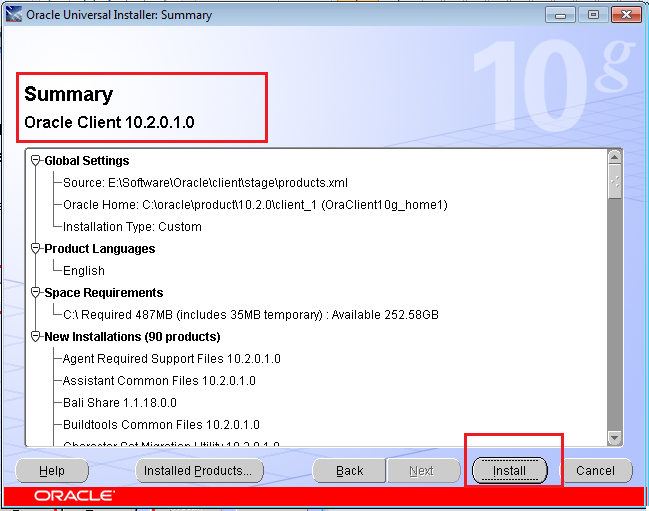
Installation
Process will continue

Oracle
Net Configuration will start

Please check the box “Perform typical configuration “and click “ Next”

Click
exit to end to close the installation window

**********END**********
Microsoft Windows update KB2670838 issues
Errors
- Not enough server storage is available to process this command
- Parameter is not valid
- Out of memory
- Red X line
Cause:
Due to Microsoft window update KB2670838 installed on your system.
Resolution:
Follow the below mentioned steps:
1. Click “Start”
2. Run “Windows
Update” from “Start Menu>All Programs
3. Go to “Installed
Updates”

4. In Search Box type “internet explorer”

If you find Windows Internet Explorer 10 after search,
click uninstall.


5.
Go back to installed updates
again.

1.
In Search Box type “KB2670838”
2. Select the update “Update for Microsoft Windows (KB2670838)”
3. Click “Uninstall” and then Yes
4. Go back to installed updates again.
5. In Search Box type “Kb2709981”, this update should be installed.
6. If not check in “ Optional Windows Update Available”
2. Select the update “Update for Microsoft Windows (KB2670838)”
3. Click “Uninstall” and then Yes
4. Go back to installed updates again.
5. In Search Box type “Kb2709981”, this update should be installed.
6. If not check in “ Optional Windows Update Available”

Select
the Update kb2709981 from optional updates and click “ok”

After selecting this
update click install updates

After update installation Open Window update options and
Select the option Never Check for Updates from drop down .

Now enjoy without windows buggy updates :P
Tuesday, 3 June 2014
How to send Email using CMD
Sending email with telnet can be very easy if you know how
to do it.
Send email with 9 easy steps,
1. Open command prompt.
Hi, Saeed
Sample text
Regards,
Admin
8. To end your message put a single (.) on a line by itself and press enter
9. Type” QUIT” to exit and press enter
Screen Shot Attached. with all steps:

Monday, 2 June 2014
How to uninstall oracle completely.
How to uninstall oracle completely.
1. Uninstall all Oracle components using the Oracle Universal Installer (OUI), click on remove button.

3. If your OS is 64 bit then follow this Run regedit.exe and delete the HKEY_LOCAL_MACHINE/SOFTWARE/ Wow6432Node/ORACLE key. This contains registry entries for all Oracle products.
4. Delete any references to Oracle services left behind in the following part of the registry:
5. HKEY_LOCAL_MACHINE/SYSTEM/CurrentControlSet/Services/Ora*
6. Reboot your machine.
7. Delete the "C:\Oracle" directory, or whatever directory is your ORACLE_HOME.
8. Delete the "C:\Program Files\Oracle" directory.
9. Empty the contents of your "c:\temp" directory.
10. Empty your recycle bin.
At this point your machine will be as clean of Oracle
components as it can be without a complete OS reinstall.
Remember, manually editing your registry can be very
destructive and force an OS reinstall so only do it as a last resort.
Subscribe to:
Posts (Atom)